
We’re seeing a surge in phishing calendar invites that users can’t delete, or that keep coming back because they sync across devices. The good news is you can remove them and minimize future spam by changing a few settings.
Most of these unwanted calendar entries are there for phishing purposes. Most of them warn you about a “impending payment” but the difference is in the subject and the action they want the target to take.
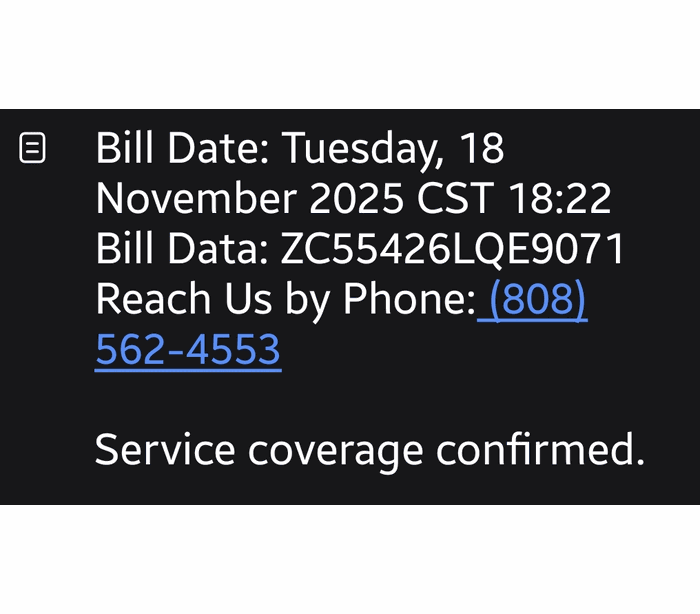
Sometimes they want you to call a number:
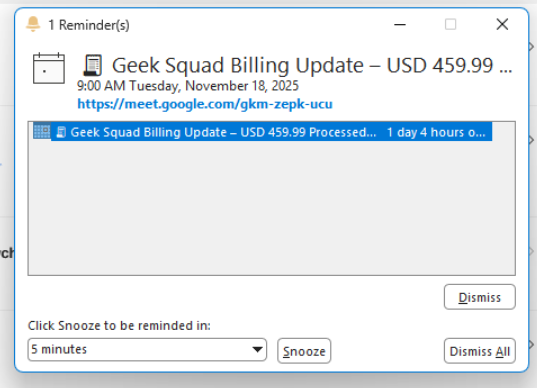
Sometimes they invite you to an actual meeting:
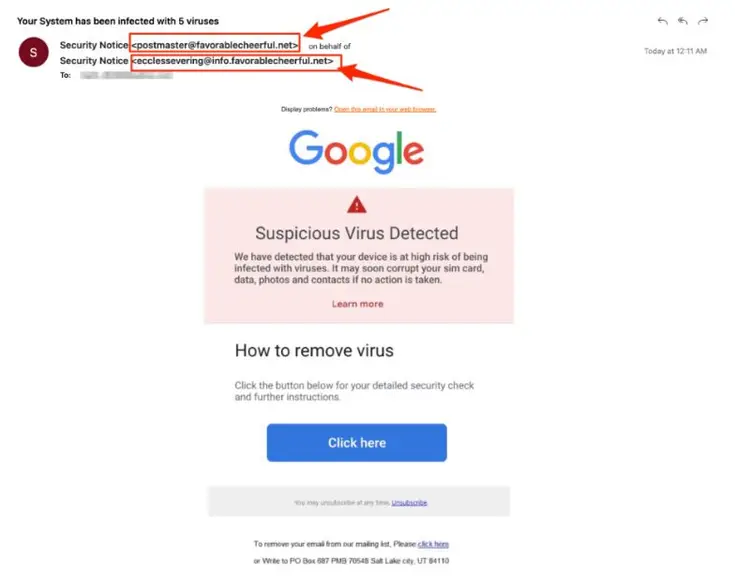
Or they are attempting to trick you into typing in your account credentials into a fraudulent website disguised as a real one, like a Google log in or a banking website:
They might use a tech support scam approach and ask you to install a Remote Monitoring and Management tool, sell you an overpriced product, or simply ask for your banking details.
The sources are usually distributed as email attachments or as download links in messaging apps.
How to remove fake entries from your calendar
This article focuses on how to remove these unwanted entries. One of the obstacles is that calendars often sync across devices.
Gmail Calendar
To disable automatic calendar additions:
- Open Google Calendar.
- Click the gear icon and select Settings in the upper right part of the screen.
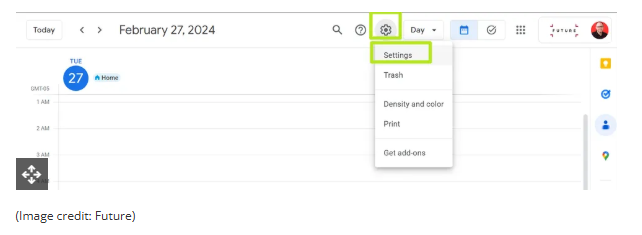
- Under Event settings, change Add invitations to my calendar to either Only if the sender is known or When I respond to the invitation email. (The default setting is From everyone, which will add any invite to your calendar.)
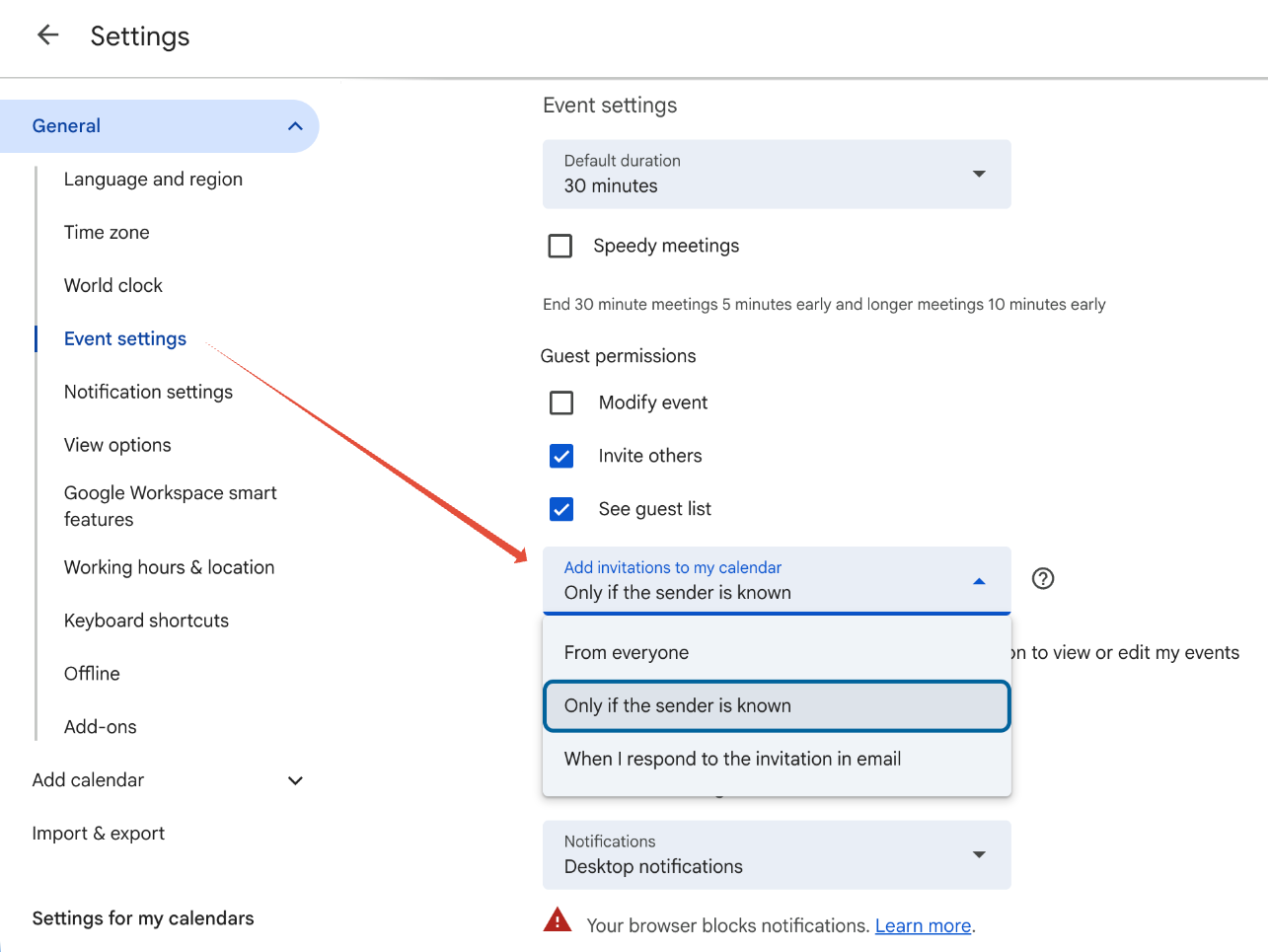
- Uncheck Show events automatically created by Gmail if you want to stop Gmail from adding to your calendar on its own.
Android Calendar
To prevent unknown senders from adding invites:
- Open the Calendar app.
- Tap Menu > Settings.
- Tap General > Adding invitations > Add invitations to my calendar.
- Select Only if the sender is known.
For help reviewing which apps have access to your Android Calendar, refer to the support page.
Mac Calendars
To control how events get added to your Calendar on a Mac:
- Go to Apple menu > System Settings > Privacy & Security.
- Click Calendars.
- Turn calendar access on or off for each app in the list.
- If you allow access, click Options to choose whether the app has full access or can only add events.
iPhone and iPad Calendar
The controls are similar to macOS, but you may also want to remove additional calendars:
- Open Settings.
- Tap Calendar > Accounts > Subscribed Calendars.
- Select any unwanted calendars and tap the Delete Account option.
Additional calendars
Which brings me to my next point. Check both the Outlook Calendar and the mobile Calendar app for Additional Calendars or subscribed URLs and Delete/Unsubscribe. This will stop the attacker from being able to add even more events to your Calendar. And looking in both places will be helpful in case of synchronization issues.
Several victims reported that after removing an event, they just came back. This is almost always due to synchronization. Make sure you remove the unwanted calendar or event everywhere it exists.
Tracking down the source can be tricky, but it may help prevent the next wave of calendar spam.