Connecting Notability to Google Drive for Canvas
Print
Created by: Dorian Roberts
Modified on: Fri, Oct 2, 2026 at 8:41 AM
Connecting Notability to Google Drive for Canvas
- Use Self Service on your iPad to install the Notability app.
- Once Notability is open, tap the ⚙ Settings icon in the top left corner.
- Sign in with your @saes.org account.
- Once signed in, go to Connected Services (still in Notability settings).
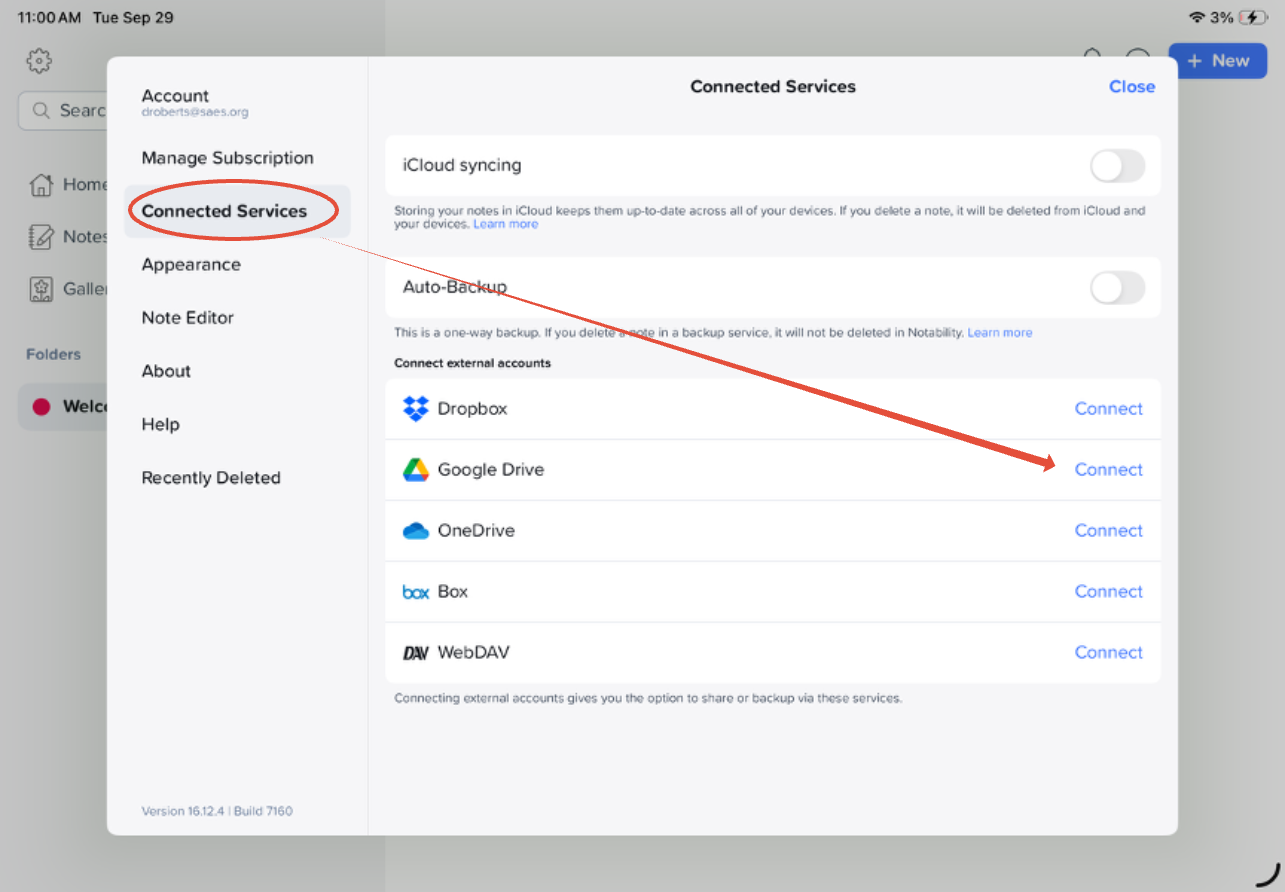
- Tap Google Drive and Connect.
- You will go through a couple more prompts verifying you selected the right account.
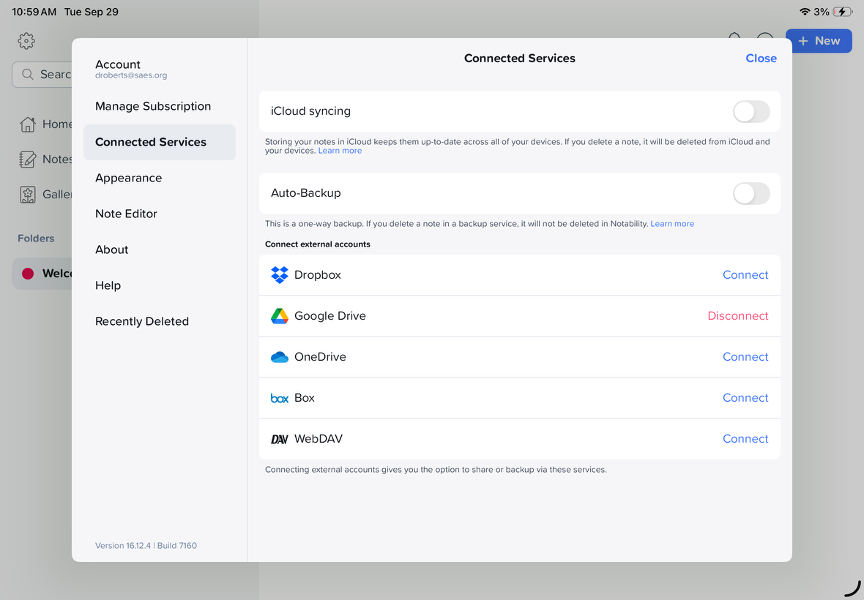
- Turn on Auto-Backup.
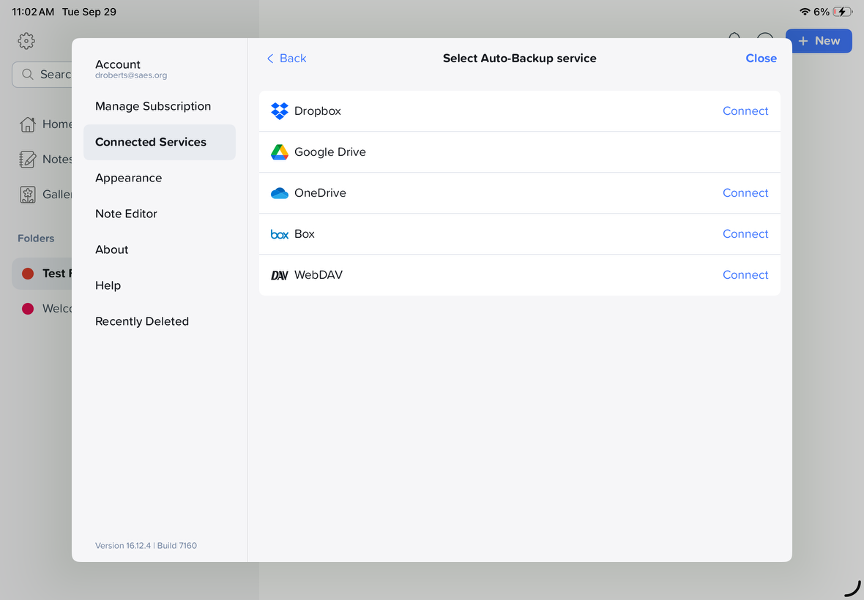
- Once you tap Auto-Backup, select Google Drive. A checkmark will appear, and you will see more options, including File format.
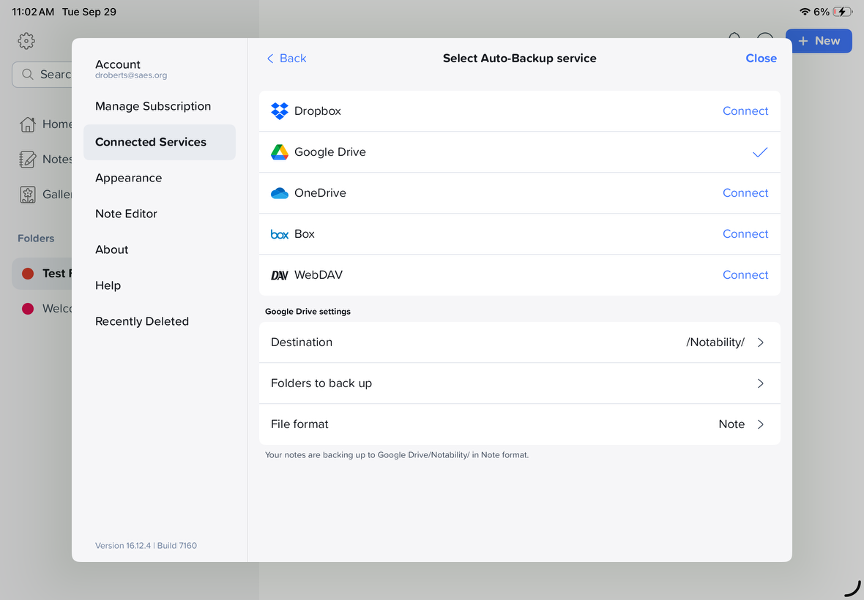
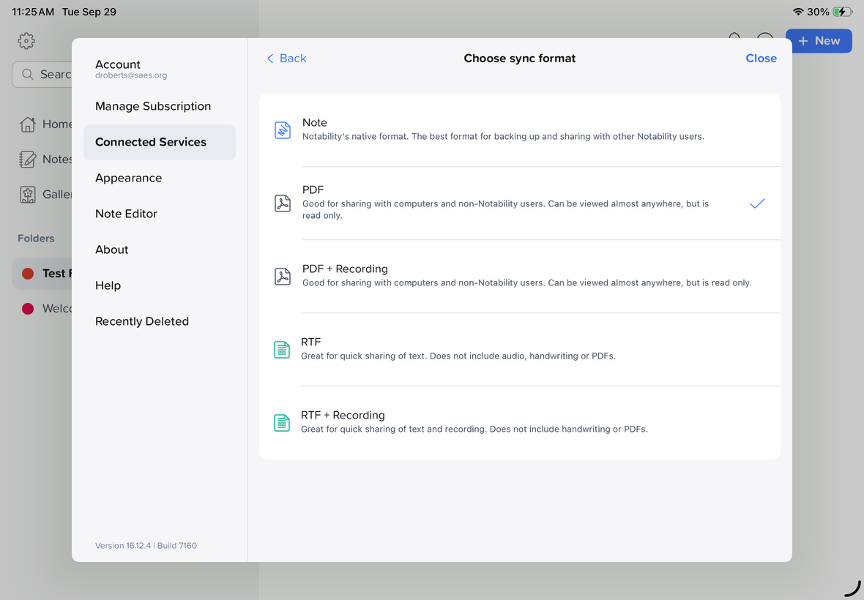
- Important: set File format to PDF. Note will not work.
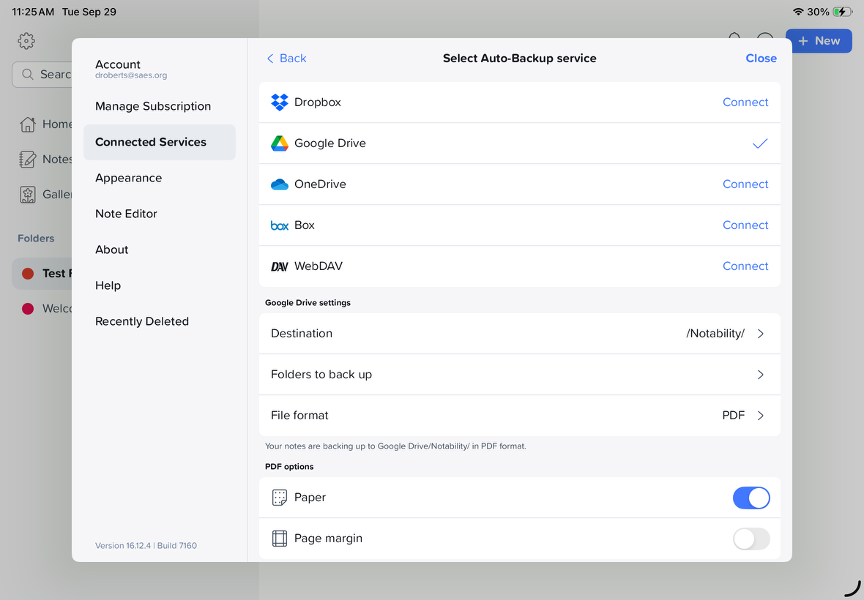
- Your notes will now show up in your St. Andrews account at drive.google.com, in a folder called Notability.
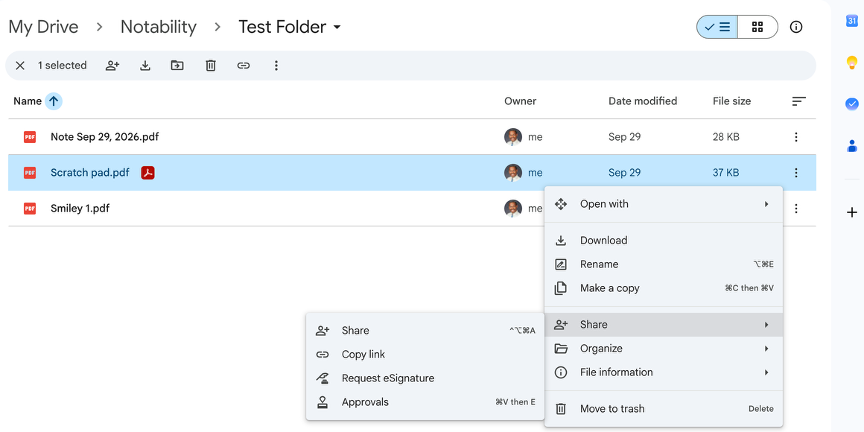
- In Drive, for whichever document you are sharing in Canvas, make sure the sharing is set to Anyone with the link (or public). You can also share the entire Notability folder, individual PDFs, or specific folders. Otherwise no one will be able to access it.
Dorian is the author of this solution article.
Did you find it helpful?
Yes
No
Send feedback Sorry we couldn't be helpful. Help us improve this article with your feedback.
