
You can easily create your own Google Groups from BlackBaud rosters to readily be able to email your class.
To get started, go to your school email address. Click the Google Apps on the upper right and search for Groups:
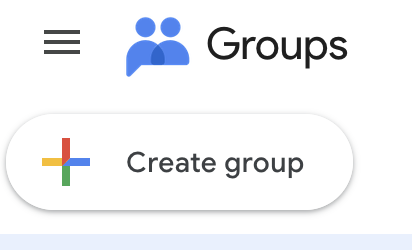
In Groups click Create Group:
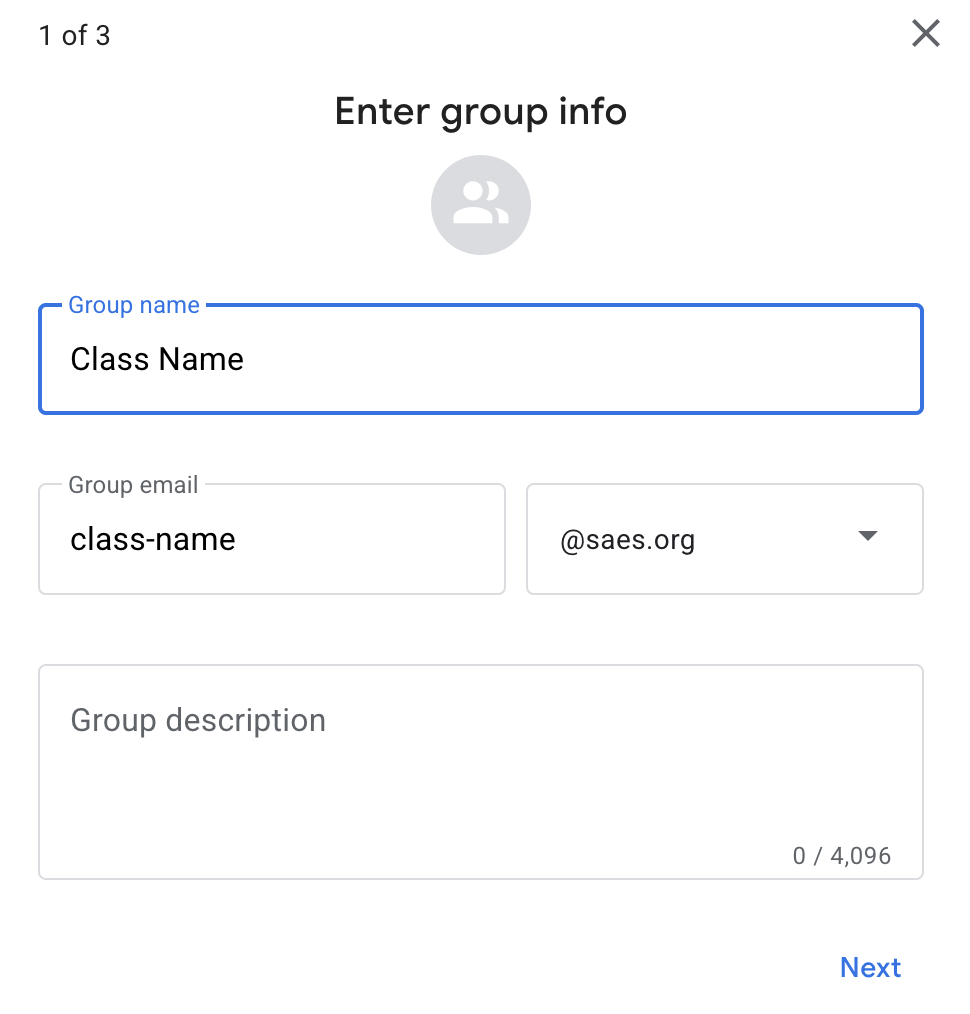
Give the Group a name of your class. As a suggestion, you might want to include division and block. The group email address will be created using the name you give it. However, you can edit the email address as you choose:
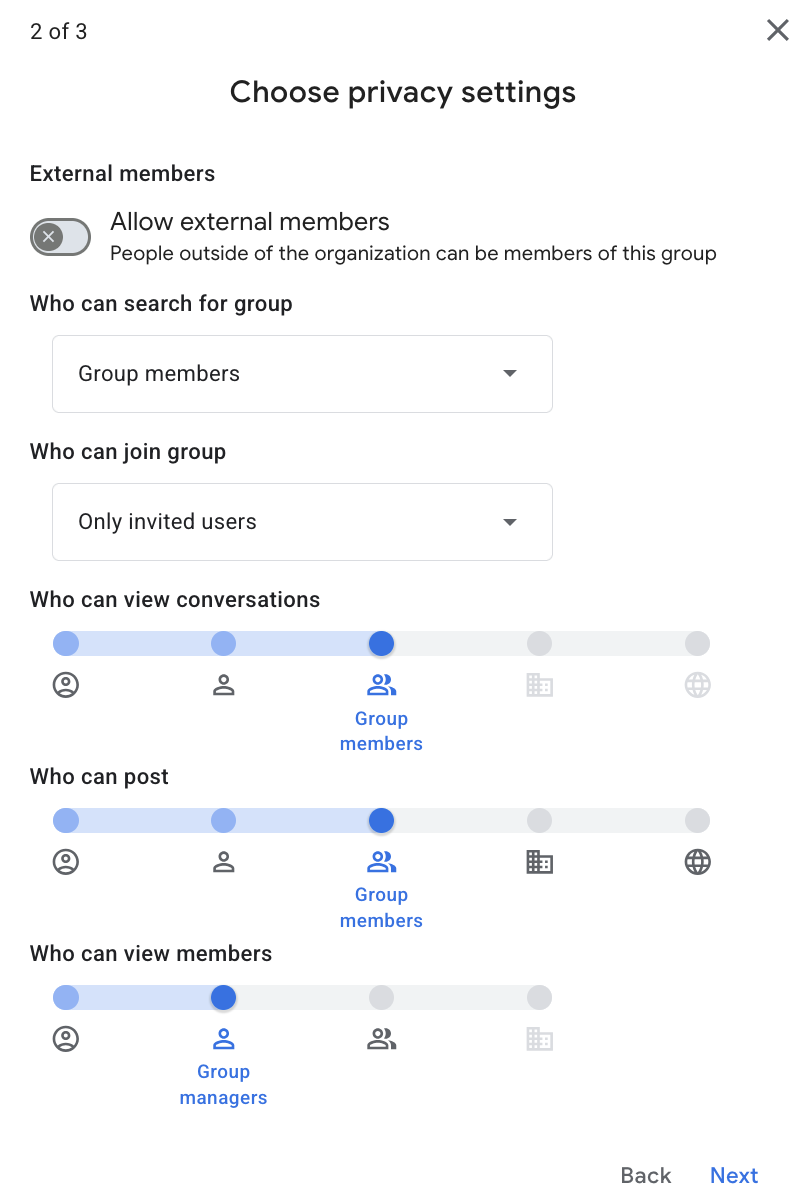
Set Privacy Settings appropriately. Do not allow external members in most cases. "Who can join the group" should be set to "Only invited users". You will want to restrictict posting to Group Owner (you) or Group Members.
Now keep that page open and in a new tab go to BlackBaud and select the class you would like to create a group for:
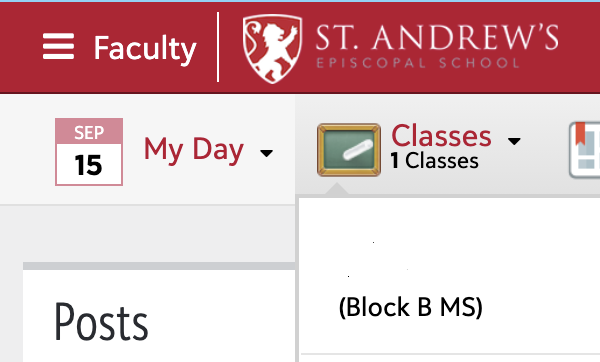
Click Roster:

Click Send Communication to and choose Students:
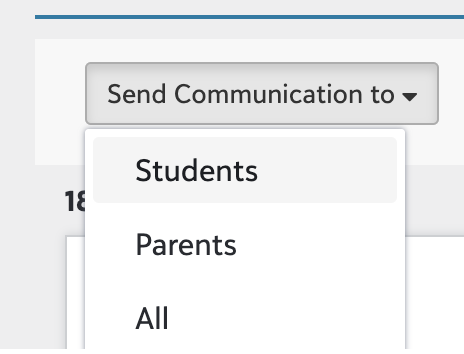
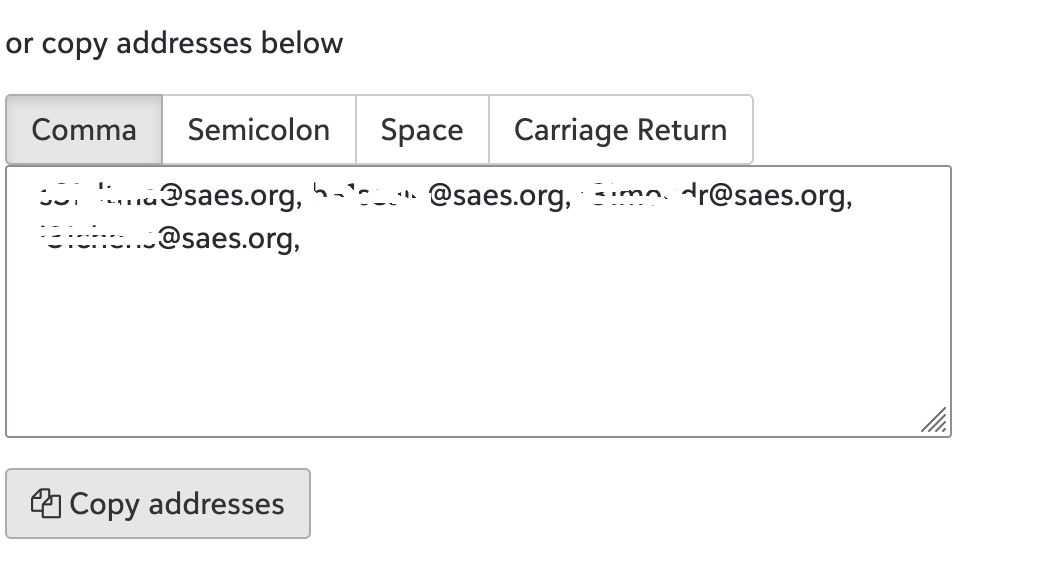
This will give you a list of student emails. Click Copy Addresses:
Back in the Google Group creation paste the student email addresses you just copied (Command-V) and click Create Group:
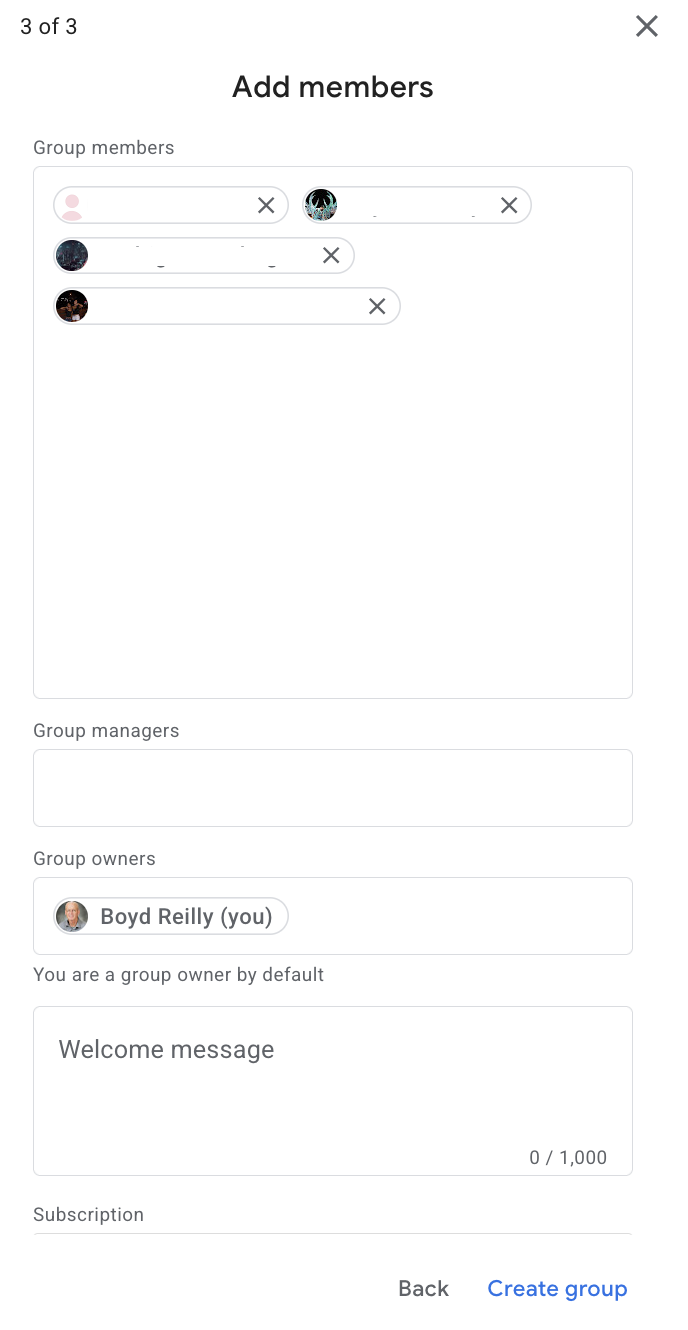
You are all set! Make sure to keep the list up to date as students are dropped and added to the class.